360 Viewer
Online 360° and VR viewer
Immersive photos and videos, seen the way they are meant to be.
360° and VR viewer
or drop a 360°, VR or fulldome file here
The file is read only by the browser on this device and is never uploaded to our servers.
Drop the file to open it
Adjustments
Drag to look around, use the wheel or two fingers to zoom. Space bar: play or pause. F: full screen. G: grid.
360 Viewer
What 360 Viewer is
Shot with a 360° camera or got a VR video, but on your computer it looks flat, doubled or warped? Many players do not recognise immersive projections. Here you open the file and watch it right away: all around you, in a headset or under the dome of a virtual planetarium. Free, no account and no upload: the file never leaves your device.
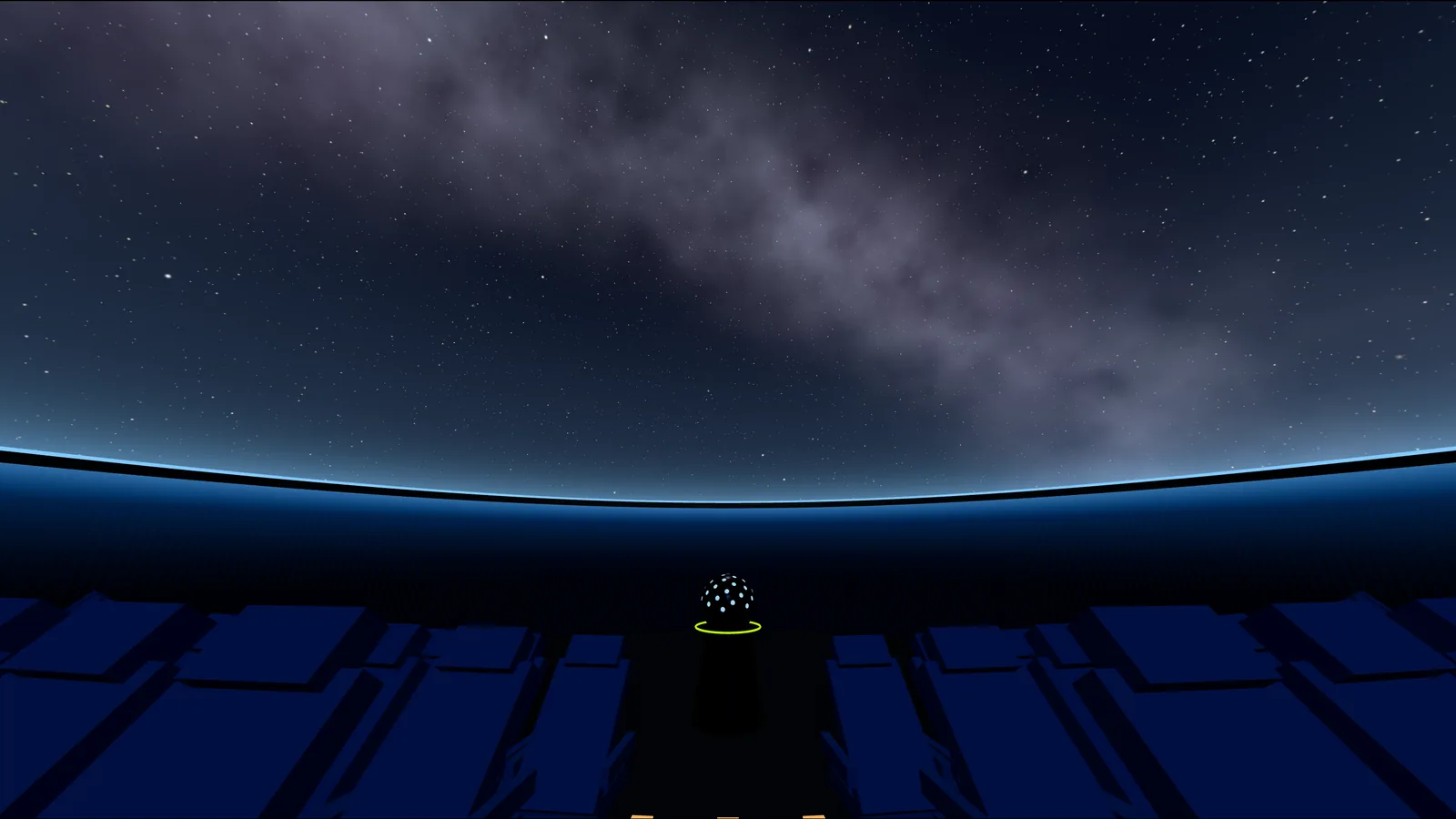
360 Viewer is a free viewer that runs in your browser and shows immersive photos and videos without uploading them. It detects the file’s projection (360° equirectangular, VR180, fisheye or domemaster) and any 3D stereo layout on its own, then puts you at the centre of the image: look around with the mouse, a finger, by moving your phone or wearing a VR headset. It also offers a view no other player has: a virtual planetarium, to see fulldome content the way an audience would under a dome.
- Price
- Free
- Upload
- None
- Formats
- 360°, VR180, 3D, fulldome
- Devices
- Computer, phone, headset
Who it is for
Anyone shooting with a 360° camera
Review footage from Insta360, GoPro MAX, Ricoh Theta, DJI or Kandao without installing software or uploading it to a social network.
VR creators
Check VR180 and 3D 360° videos eye by eye, on screen or right in the headset, before you publish them.
Dome and planetarium producers
Preview a fulldome master from a seat in the hall, with a horizon and zenith grid, without booking a dome.
Agencies, schools and museums
Show a 360° tour, a property walkthrough or a lesson to a client or a class with a simple link.
How to view a 360° photo or video
Three steps, with no account and nothing to install.
Open the file
Press “Open a photo or video” and pick a file from your computer, phone or headset, or drop it into the frame.
Let it detect the format
Projection and 3D are detected from the aspect ratio, the content and the file name. If needed, change them in the Format and Stereo menus, and set pan, tilt, roll, fisheye aperture and dome tilt in Adjustments.
Look around
Drag, zoom or use your phone’s gyroscope. Press the headset icon to enter VR, or choose Planetarium to see it in a dome.
Supported 360° and VR formats
The viewer reads the image and video formats your browser can decode and projects them correctly.
| Format | Typical file | How it is detected | How it looks |
|---|---|---|---|
| 360° equirectangular | 2:1, for example 5760×2880 or 7680×3840 | 2:1 aspect ratio with two different halves | A full sphere around you; the planetarium shows the upper hemisphere. |
| 3D 360° top/bottom | 1:1, for example 4096×4096 | Top and bottom halves nearly identical, or “TB” in the name | One eye on screen, both eyes in the headset. |
| 3D VR180 side by side | 2:1, for example 5760×2880 | Left and right halves nearly identical, or “SBS”, “LR” or “180” in the name | A 180° hemisphere in front of you, in 3D in the headset. |
| Fulldome / domemaster | 1:1, for example 4096×4096, usually 180° | Fisheye circle with black corners | A dome with the front of the hall at the bottom of the image, as in planetariums; aperture adjustable from 90° to 360°. |
| Flat video | 16:9, 4:3 or vertical | Aspect ratios other than 2:1 and 1:1 | A screen in front of you or in the dome, with a field of view adjustable from 20° to 170°. |
JPG, PNG, WebP and AVIF images. MP4 H.264 videos everywhere, H.265/HEVC where the browser supports it (Safari, Edge, Chrome with hardware decoding), WebM VP9 or AV1, and MOV on Safari.
Compatible cameras and sources
It works with files exported from Insta360 (X3, X4, ONE RS and similar), GoPro MAX, Ricoh Theta, DJI Osmo 360, Kandao QooCam, Samsung Gear 360 and Canon RF Dual Fisheye, with smartphone photo spheres, and with 360° and fulldome renders from Blender, Unreal Engine, Unity and Cinema 4D. Native camera files (.insv, .360 and similar) hold two raw fisheye images: export them to equirectangular MP4 or JPG with the camera app first.
How to watch 360° photos and videos in a VR headset
On a headset with a WebXR-compatible browser, such as Meta Quest or Pico, the same page becomes a VR player.
- Open this page in the headset browser.
- Press “Open a photo or video” and pick the file saved on the headset.
- Press the headset icon: you are inside the video, in 3D if the file is stereo. To leave, use the controller or system button.
On a phone, in the 360° view, turn on the gyroscope icon: you look around by moving the phone, like a window onto the video.
Common problems with 360° videos
The most frequent reasons a 360° or VR file does not look right.
The video looks doubled
It is a 3D stereo file: choose “3D top/bottom” or “3D side by side” in the Stereo menu. The screen shows one eye, the headset both.
I see one or two circles
It is a fisheye: choose “Fisheye / domemaster” and set the aperture in Adjustments. Two circles side by side are the raw camera file: export it to equirectangular first.
The video does not play
The codec is probably not supported by this browser, such as HEVC on some Chrome builds or ProRes. Export to MP4 H.264 or try Safari or Edge.
The image looks soft
In a 360° file the pixels are spread over the whole sphere: 4K (3840×1920) gives about 10.7 pixels per degree. A sharp result needs 6K or 8K.
From preview to a real dome
Once a piece of content works here, the next step is projecting it in a venue. This is what it actually takes.
A master at the right resolution
A dome usually receives a 4K (4096×4096) or 8K domemaster at 30 or 60 frames per second; a 360° wall room an 8K equirectangular file.
Aligned projectors
A dome uses one or more projectors: the image is warped onto the surface and blended where the projectors overlap.
A media server
It plays the master in sync on every output, runs the show schedule and lets you control the room remotely.
Your files stay yours
The viewer opens the file with the browser’s own functions and draws it with WebGL on your device’s graphics card.
Smooth even with heavy files
The viewer only works when it needs to.
- The 3D engine is downloaded only when you open the viewer, so the page stays light.
- With a still image the scene is not redrawn: the graphics card stays idle.
- Images larger than the card’s maximum texture size are scaled down automatically.
- 8K videos need a device that decodes them in hardware; on phones and headsets, 4K to 6K is the better choice.
Frequently asked questions
How can I view a 360° photo or video on my computer?
Open 360 Viewer in your browser, press “Open a photo or video” and pick the file. The format is detected automatically and you look around by dragging with the mouse. There is nothing to install and no need to upload the file to YouTube or a social network.
Are my files uploaded online?
No. The file is read by the browser and shown on your device; it never goes through our servers and no copy remains once you close the page.
Can I watch VR180 and 3D 360° videos?
Yes. The viewer supports VR180 and 360° in 3D top/bottom or side by side. On screen it shows the left eye; in a VR headset it shows both eyes in 3D.
Does it work with Meta Quest and other headsets?
Yes, with headsets that have a WebXR-compatible browser, such as Meta Quest and Pico: open the page in the headset browser, pick the file and press the headset icon.
What is the difference between 360° and VR180 video?
A 360° video covers the whole sphere around the viewer. A VR180 video covers only the half in front, usually in 3D, with more detail at the same resolution.
What is the equirectangular format?
It is the standard way to store a sphere in a 2:1 rectangular image: the width represents 360° horizontally and the height 180° vertically. Most 360° cameras export this format.
What is a domemaster and how does it look in a dome?
A domemaster is a square frame holding a fisheye circle, usually 180°, the format used by planetariums and fulldome theatres. The front of the hall is at the bottom of the image and the zenith at the centre. In the Planetarium view the viewer projects it onto a virtual dome, which can also be tilted up to 30°.
How do I straighten a tilted 360° video or a crooked horizon?
Open Adjustments: tilt (pitch) and roll level the horizon, pan (yaw) chooses which part of the scene is in front. Pan and roll go from −180° to +180° and tilt from −90° to +90°, as in VR Converter Studio; to save the correction into the file, use VR Converter Studio.
Is there a size or length limit?
The site sets no limits: they depend on your device’s memory and decoder. Images larger than the graphics card’s maximum texture size are scaled down automatically.
How do you project a 360° or fulldome video in a real dome?
You need a master at the dome’s resolution, one or more projectors calibrated with warp and blending, and a media server that plays them in sync. That is why we built TholusOS, a Mac media server with playback, warp and blending for up to 8 projectors and show scheduling.
How is it different from VR Converter Studio?
VR Converter Studio is our Mac app that converts videos from one projection to another, for example from equirectangular to domemaster. 360 Viewer lets you watch and check them right away in the browser, with nothing to export.
Technical references
The standards behind the projections, stereo layouts and headset viewing.
Need a real dome?
We design and install immersive domes and planetariums, and we produce 360° and fulldome content. Tell us about your project.